 MINARA
Connect and Manage
Choose permissions, connect multiple accounts, manage the picker, and control Connector access per task.
Add a Connector
Open Connectors → Add connectors. The Catalog separates installed menu entries from task activation.
- Choose + next to a provider.
- Review the provider and authorization status.
- Select a permission level for each service.
- Authenticate in the provider window.
- Return to Minara and wait for the success state.
Minara adds a new Catalog entry to the first-level menu only after connection succeeds. The six default entries remain visible before connection.
Choose service access
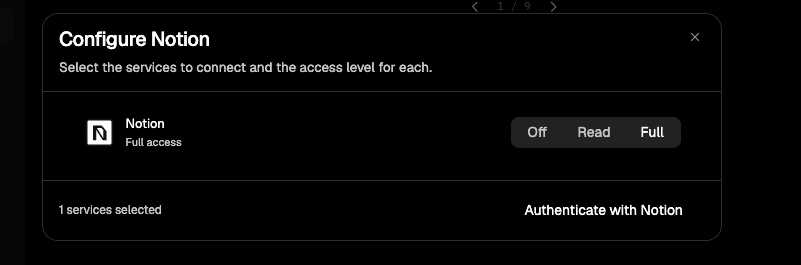
Each service offers the levels it supports:
- Off excludes the service.
- Read enables search and retrieval.
- Full adds supported create or update actions.
The first connection defaults to Full so the selected Connector can perform its advertised actions. Reduce access before authentication if the task only needs reading. Authentication cannot continue when every service is Off.
The Gateway generates OAuth scopes from the built-in Catalog. It rejects unknown service IDs and arbitrary scopes sent by a client.
Reducing a level immediately tightens Minara's service gate. Some providers retain scopes already granted to an authorization. Disconnect and reconnect when you need the provider itself to remove those historical scopes.
Use the first-level and hover menus
Open the Connector picker to see visible entries. Hover a provider to open its second-level menu. From there you can:
- Turn Use in this task on or off.
- Select the default account.
- Connect another account.
- Open Manage connector.
A green dot beside the chevron means the Connector is connected and active for this task. Disconnected and inactive entries have no status dot.
Task activation creates a session-only routing overlay. Turning it off removes that Connector's Skills and tools from the current task. It does not revoke the provider account.
Manage multiple accounts
One Connector can hold multiple identities. The account list shows the display name, a masked identifier when available, and the default account.
- Select one account before reading identity-specific data.
- Select accounts explicitly before a cross-account read.
- Resolve every write to one account.
- Reconnect an expired account from the detail dialog.
Minara never treats a previous account choice as permission for a later high-risk action.
Disconnect or remove
Disconnecting revokes the local Connector authorization and removes its tools from the current task. The first-level menu entry stays in place.
To remove an entry from the menu:
- Disconnect every account for that Connector.
- Open Add connectors.
- Select the checkmark on the Connector card.
The Catalog blocks removal while any account remains connected. Removing an entry from the menu does not delete its built-in definition.
Review routes and delivery
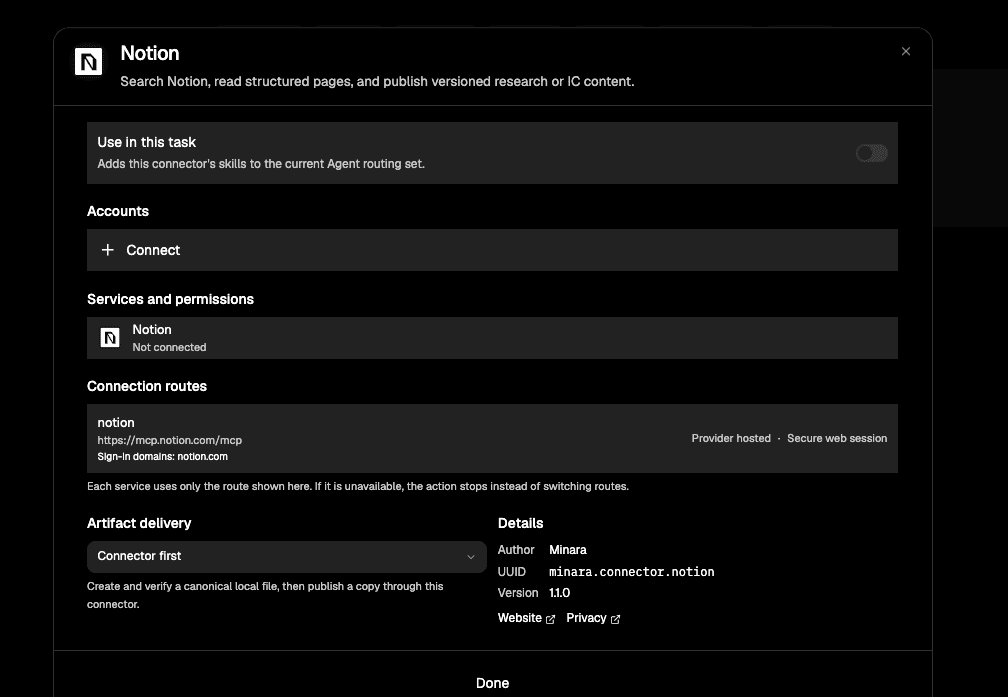
Manage connector shows accounts, service permissions, connection routes, release status, and artifact delivery. Preview routes can be unavailable in some environments. Minara stops the affected action and shows the reason.
Availability and capability are separate. A Catalog card can describe an implemented capability while Connect remains disabled pending provider approval, deployment configuration, or a required local adapter. The disabled state and its reason are authoritative for the current build.