 MINARA
Web Dashboard
The browser dashboard for Minara Agent. When to use it, how to launch it, and a tour of every screen.
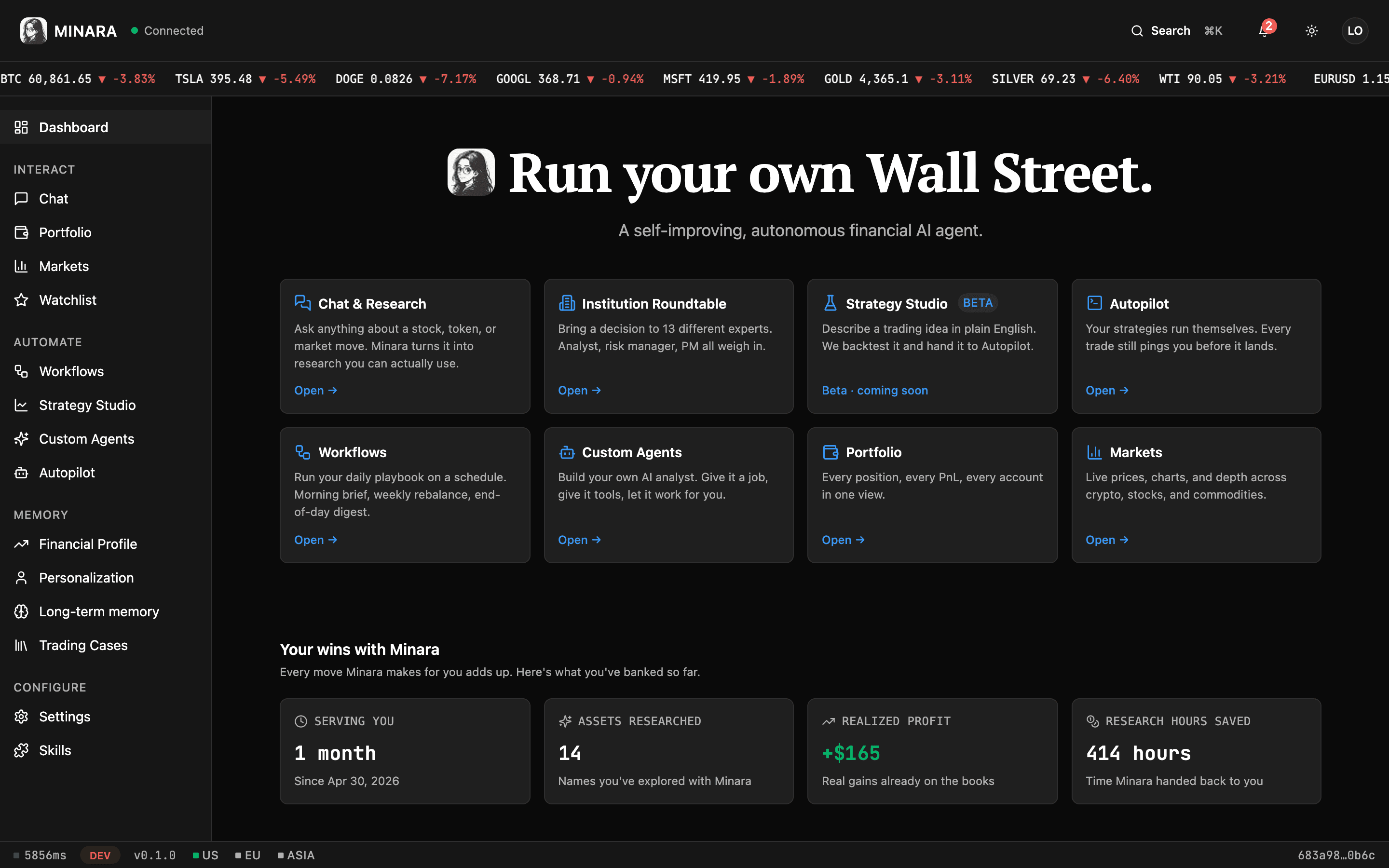
Minara Agent has two front ends: the terminal REPL and the Web UI, a browser dashboard styled like a markets terminal. The REPL is fastest for quick questions and scripting. The Web UI is the place to watch live portfolios, build automations with a visual editor, and manage settings without memorizing commands. Both talk to the same gateway and the same account, so you can switch between them anytime.
Launch it
The gateway serves the Web UI. Bring both up with one command.
minara serve --uiThis builds the interface if needed, starts the HTTP gateway, and serves
the Web UI, then prints a URL to open in your browser. See Installation
to install the CLI first. The serve reference
covers the flags (--ui-dev for hot reload, --ui-port to change the port).
First run
On first open, the Web UI checks your Minara sign-in. If you are not connected yet, a sign-in panel walks you through it (the same account the CLI uses). Once connected, you land on the Dashboard, a board of feature cards and a system-health row that doubles as a map of everything below.
Navigation
A sidebar groups every screen. Each item links to its feature in depth.
- Dashboard. Overview cards, module stats, and system health.
- Interact.
- Chat: talk to the agent, run trades, and attach files. Institution analysis lives here as a tab.
- Coding: build, review, and test local projects in a checkout or isolated worktree.
- Portfolio: spot and perps holdings, orders, sub-wallets, and the equity curve.
- Markets: live crypto, stocks, commodities, forex, and indices.
- Watchlist: the symbols you follow, with quotes and sparklines.
- Automate.
- Workflows: a visual editor for alerts, briefs, and automations.
- Factor Research: discover, evaluate, and manage reusable quantitative factors.
- Strategy Studio: build trading strategies with AI.
- Data Studio: generate, preview, and publish live market dashboards.
- Custom Agents: saved agents that run on a schedule or on demand.
- Autopilot: managed automated trading.
- Memory. Your financial profile, personalization, long-term memory, and trading cases.
- Configure. Settings, the Skills registry, and Connectors for external services.
Always-on chrome
- A top bar with your account menu and notifications.
- A command palette (
Cmd/Ctrl + K) to jump to any screen or search. - A ticker tape of live quotes across the top.
- A status bar with system health, theme, and language.
Settings at a glance
Open Settings from the sidebar. The panels:
- General. Theme (dark or light), language, and browser notifications.
- Provider. Pick and sign in to your LLM provider, and swap models.
- Preferences. Turn features on or off, with a confirmation step for risky changes.
- API keys. Credentials for market data, web search, and other services.
- Messaging. Connect Telegram, Slack, Discord, email, and more.
- Workspace. Edit the markdown files that shape the agent's behavior.
- Security. Set up two-factor authentication.
- Experimental. Early features, off by default.
Where to go next
- New here? Start with First-Time Setup.
- Want to automate? See Tasks & Workflows.
- Prefer the terminal? The CLI covers every command.